

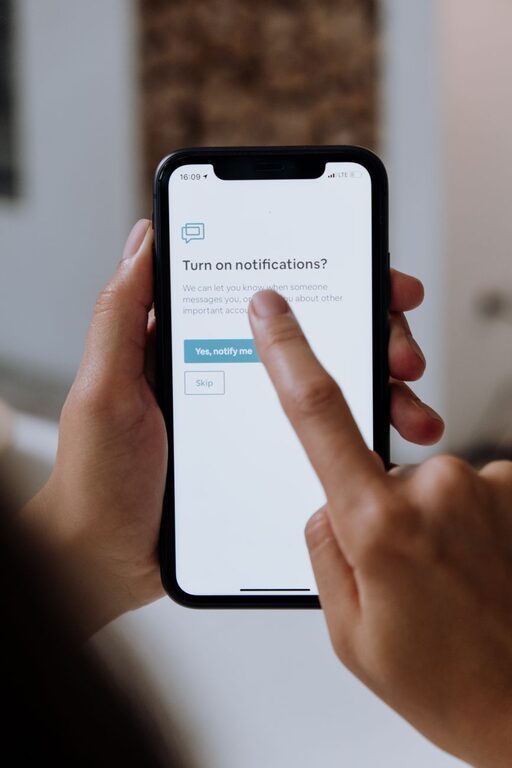
Notifications can be helpful, but they can also interrupt work, rest, conversations, and personal time. A steady stream of alerts may make every message feel urgent, even when it is not. Setting notification boundaries helps you decide when to pay attention instead of reacting automatically.
The goal is not to eliminate every alert. It is to create a system that keeps important information visible while reducing unnecessary distractions. With a few thoughtful changes, you can make your devices work better for your daily routine.
Start by Auditing Your Notifications
Before changing your settings, take a few minutes to notice what is currently reaching you. Many apps request permission to send alerts, and it is easy to accept without considering whether each notification is useful.
Review your phone, tablet, computer, and smartwatch. Look for:
– Apps that send frequent updates
– Alerts that interrupt you during work or study
– Notifications you regularly dismiss without reading
– Promotions, recommendations, or social updates
– Messages that could wait until a scheduled check-in
– Duplicate alerts appearing on more than one device
Ask yourself three simple questions for each app:
- Do I need to know about this immediately?
- Is this alert useful at a specific time?
- Would I miss anything important if notifications were turned off?
Your answers can help you sort notifications into three groups: essential, useful but not urgent, and unnecessary.
Keep Only Essential Alerts Active
Essential notifications are alerts that genuinely require timely attention. These might include direct messages from close contacts, calendar reminders, travel updates, or alerts connected to responsibilities you manage.
The definition of “essential” is different for everyone. The important point is to choose intentionally rather than allowing every app to set the standard.
For essential alerts, consider:
– Keeping sound or vibration enabled
– Allowing notifications from selected people
– Using a distinct sound for high-priority messages
– Showing alerts on your lock screen only when appropriate
– Enabling emergency or safety-related features when needed
Avoid labeling too many notifications as urgent. If everything receives priority, nothing stands out. A smaller list makes important alerts easier to notice.
Silence Nonurgent Notifications
Many alerts are not time-sensitive. Social media updates, news summaries, shopping offers, game reminders, and app recommendations can usually wait.
Turn off notifications that encourage you to check an app without providing necessary information. You can still open the app when you choose. Removing the alert simply puts you back in control of the timing.
On many devices, you can customize notifications by category. For example, you might allow direct messages from an app while silencing likes, suggested posts, and promotional content.
This approach is often more effective than deleting every app. You can keep useful tools while reducing the interruptions that come with them.
Use Scheduled Check-In Times
Instead of checking messages whenever an alert appears, choose specific times to review them. A schedule might include:
– A morning check after getting settled
– A midday review during a planned break
– An afternoon check before finishing work
– An evening review before winding down
The right schedule depends on your responsibilities. If you are waiting for an important message, you can check more often. If your day requires long periods of concentration, fewer check-ins may work better.
Scheduled checks create a clear alternative to constant monitoring. They also make it easier to focus because you know when you will review new information.
Create Focus Periods
Most phones and computers offer features such as Focus mode, Do Not Disturb, or notification schedules. These tools can temporarily silence alerts while allowing selected contacts or apps to reach you.
Create different modes for different parts of your day, such as:
Work or Study
Allow calendar reminders, direct calls, or messages from key contacts. Silence social media, shopping, and entertainment alerts.
Personal Time
Reduce work-related notifications so you can focus on meals, hobbies, exercise, or conversations.
Sleep
Silence nearly all alerts overnight. If you use your phone as an alarm, check that your alarm will still function when Do Not Disturb is active.
Travel or Errands
Allow navigation, transportation, appointment, or delivery updates while limiting unrelated alerts.
These modes reduce the need to adjust settings manually throughout the day. Review them occasionally to make sure they still match your routine.
Protect Your Start and End of Day
The first and last parts of the day can easily become dominated by notifications. Checking messages immediately after waking up may pull your attention into other people’s priorities before you have considered your own.
Try keeping notifications off for the first 30 minutes of the day. Use that time to get ready, review your plans, or enjoy a quiet start.
In the evening, set a notification cutoff time. After that point, allow only selected contacts or essential alerts. This creates a transition between active tasks and rest.
You do not need a perfect routine. Even a short notification-free period can make the beginning and end of your day feel more deliberate.
Change the Way Alerts Appear
Sound is only one form of interruption. Banners, badges, vibrations, and lock-screen previews can also pull your attention away.
Consider adjusting the following:
– Turn off badge counts for nonessential apps
– Remove banners from apps you do not need to monitor
– Use vibration only for selected alerts
– Hide message previews on shared or visible screens
– Move distracting apps away from your home screen
– Use a simple or neutral alert sound
Visual badges can create a sense of unfinished business, especially when they show a large number of unread items. Removing them may make it easier to check apps on your own schedule.
Set Boundaries With Other People
Notification boundaries are also social boundaries. Friends, family members, and coworkers may expect quick replies if you have always responded immediately.
You do not need to explain every setting, but it can help to communicate your general availability. For example, you might say:
– “I check messages a few times during the day.”
– “I may not see notifications during work blocks.”
– “For something urgent, please call.”
– “I usually respond in the evening.”
Clear expectations reduce pressure and help others understand that a delayed reply is not necessarily a problem.
If you are setting boundaries at work, agree on which communication methods should be used for urgent matters. This prevents important information from being buried in a stream of routine messages.
Review Your System Regularly
Notification settings are not a one-time project. New apps may request access, and your schedule may change. Set aside a few minutes every month to review what is reaching you.
Ask:
– Which notifications helped me recently?
– Which alerts did I ignore?
– Am I checking messages outside the times I planned?
– Do I need a new Focus mode?
– Are too many devices sending the same alert?
Make small changes instead of trying to redesign everything at once. Turn off one distracting category, add one focus period, or remove one unnecessary badge. Small improvements are easier to maintain.
Build a More Intentional Digital Routine
Notifications should support your priorities, not dictate them. By auditing your alerts, silencing nonurgent updates, scheduling check-ins, and using focus tools, you can create more space for concentrated work and meaningful time away from screens.
Start with one simple step today: turn off notifications from an app that regularly interrupts you without providing real value. Then observe how the change affects your attention. Over time, these small decisions can help you use technology with greater control and fewer interruptions.